
A Media File in WordPress is any file that you upload to your website, such as images, videos, audio files, or documents. All uploaded files are stored in the Media Library, making them easy to manage and reuse.
Types of Media Files
- Images: JPG, JPEG, PNG, GIF, WebP, SVG (with plugins)
- Videos: MP4, MOV, AVI
- Audio: MP3, WAV, OGG
- Documents: PDF, DOC, DOCX, PPT, PPTX, XLS, XLSX, TXT
Features of the Media Library
- Upload single or multiple files.
- Organize files in one place.
- Search media files by name.
- Edit image details (title, caption, alt text, description).
- Delete unused media files.
- Reuse media across pages and posts.
How to Upload a Media File
- Log in to the WordPress Dashboard.
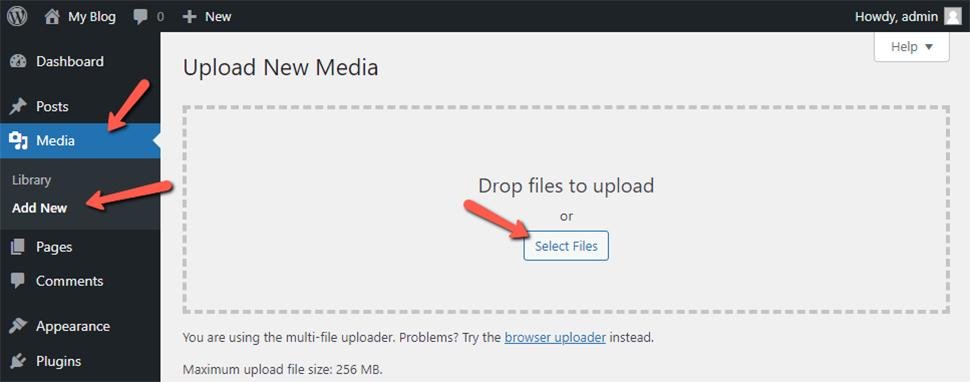
- Click Media → Add New.
- Click Select Files or drag and drop files into the upload area.
- Wait for the upload to complete.
- The file is now available in the Media Library.
How to Insert Media into a Post or Page
- Open a post or page for editing.
- Click the + (Add Block) button.
- Select the Image, Gallery, Video, or File block.
- Choose Media Library or Upload.
- Select the desired file and click Insert.
Editing Media Details
- Go to Media → Library.
- Click on a media file.
- You can edit:
- Title
- Caption
- Alternative Text (Alt Text) (important for SEO and accessibility)
- Description
- Click Update to save changes.
Deleting a Media File
- Open Media → Library.
- Select the media file.
- Click Delete Permanently.
- The file will be removed from the website.
Advantages of the Media Library
- Centralized storage for all uploaded files.
- Easy reuse of images and documents.
- Supports drag-and-drop uploading.
- Improves website organization.
- Helps SEO with Alt Text and captions.
- Supports many common file formats.
Practical Example
Task: Upload a college logo and use it on the homepage.
- Go to Media → Add New.
- Upload college-logo.png.
- Edit the Alt Text to: Geetanjali Group of Colleges Logo.
- Open the homepage in the editor.
- Add an Image block.
- Select the uploaded logo from the Media Library.
- Publish or update the page.